Nutanix Enterprise AI(NAI)2.6 の Management API と curl コマンドを利用して、NAI にインポートしてあるモデルから、推論サービスのエンドポイントを作成してみます。
前回はこちら。
今回の内容です。
今回の環境
今回の API 操作では、以前の投稿の後半部分と同様のエンドポイント作成を実施します。
前回と同様に、Sarashina の軽量なモデルを使用します。
curl コマンドを実行しやすいように、NAI の接続情報を変数に格納しておきます。
NAI_UI=<NAI UIのIPアドレス>
NAI_USER=admin
NAI_PASS='パスワード'
1. 既存エンドポイントの情報確認
API に渡す JSON データの参考にするため、既存エンドポイント(sarashina22-05b-ep-2)の情報を取得しておきます。
エンドポイント名も変数に格納しておきます。
EP_NAME=sarashina22-05b-ep
エンドポイントの情報は、下記のような curl コマンドで取得できます。
curl -k -s --request GET \
--url "https://$NAI_UI//api/enterpriseai/v1/endpoints/$EP_NAME" \
--header 'Accept: application/json' \
-u "$NAI_USER:$NAI_PASS" \
--header 'Content-Type: application/json' | jq -r .
実際にエンドポイントの情報を取得した様子です。
$ curl -k -s --request GET \
--url "https://$NAI_UI//api/enterpriseai/v1/endpoints/$EP_NAME" \
--header 'Accept: application/json' \
-u "$NAI_USER:$NAI_PASS" \
--header 'Content-Type: application/json' | jq -r .
{
  "data": {
    "id": "sarashina22-05b-ep",
    "createdAt": "2026-05-24T18:14:42.433362Z",
    "updatedAt": "2026-06-15T15:22:25.021761Z",
    "name": "sarashina22-05b-ep",
    "modelId": "nai-ced3d622-038b-42ba-acac-55",
    "modelName": "sarashina22-05b",
    "modelCapabilities": [
      "text-to-text"
    ],
    "cpu": 4,
    "memory": 16,
    "acceleratorCount": 1,
    "acceleratorProduct": "NVIDIA-A16",
    "description": "",
    "createdBy": {
      "id": "00000000-0000-0000-0000-000000000000",
      "username": "admin"
    },
    "endPointUrl": [
      "/enterpriseai/v1/chat/completions"
    ],
    "minInstances": 1,
    "maxInstances": 1,
    "actualInstances": 1,
    "engine": "vllm",
    "validated": false,
    "adminEnabled": true,
    "platform": "nvidia-gpu-passthrough",
    "purpose": "real-time",
    "expandValues": {
      "actualInstances": "1"
    },
    "experimental": false,
    "runtimeImage": "docker.io/nutanix/nai-vllm:v0.13.0-gpu",
    "engineSource": "nai",
    "kvAwareRouting": false
  },
  "msg": "Endpoint fetched successfully"
}
2. API キー ID の確認
今回は、エンドポイントの作成と同時に API キーを割り当てます。エンドポイントの JSON では API キーの ID を指定するため、ここで確認しておきます。
API キーの ID は、下記のような curl コマンドで確認できます。
- エンドポイント名は、sarashina22-05b-ep-2 にしています。(最大20文字)
- apikeys の search は、POST メソッドです。
- API キーの名前(demo-key-01)に一致する(equalTo)キーのみ取得します。
- jq のクエリで、id のみ取得しています。(jq -r .data.apikeys[0].id)
curl -k -s --request POST \
--url "https://$NAI_UI/api/enterpriseai/v1/apikeys/search" \
--header 'Accept: application/json' \
-u "$NAI_USER:$NAI_PASS" \
--header 'Content-Type: application/json' \
    --data '{
    "filters": [
        {
            "field": "name",
            "operation": "equalTo",
            "values": [
                "demo-key-01"
            ]
        }
    ],
    "limit": 1,
    "offset": 0,
    "sort": [
        {
            "field": "name",
            "order": "ASCENDING"
        }
    ]
}' | jq -r .data.apikeys[0].id
実際に実行すると、下記のように API キーの ID(nai-8b1846b9-ca60-4a75-871f-0b)を取得できます。
$ curl -k -s --request POST \
--url "https://$NAI_UI/api/enterpriseai/v1/apikeys/search" \
--header 'Accept: application/json' \
-u "$NAI_USER:$NAI_PASS" \
--header 'Content-Type: application/json' \
    --data '{
    "filters": [
        {
            "field": "name",
            "operation": "equalTo",
            "values": [
                "demo-key-01"
            ]
        }
    ],
    "limit": 1,
    "offset": 0,
    "sort": [
        {
            "field": "name",
            "order": "ASCENDING"
        }
    ]
}' | jq -r .data.apikeys[0].id
nai-8b1846b9-ca60-4a75-871f-0b
3. エンドポイントの作成
エンドポイントは、下記のような curl コマンドで作成します。
- 最大トークン数などは、vllmArgs に指定します。
- API キー(apiKeys)は、キー名ではなく ID で指定します。
- モデル ID(modelId)には、前回の投稿 で確認したものを指定します。
curl -k -s --request POST \
--url "https://$NAI_UI/api/enterpriseai/v1/endpoints" \
--header 'Accept: application/json' \
-u "$NAI_USER:$NAI_PASS" \
--header 'Content-Type: application/json' \
--data '{
    "acceleratorCount": 1,
    "acceleratorProduct": "NVIDIA-A16",
    "advancedConfig": {
        "vllmArgs": {
            "maxNumTokens": 8192
        }
    },
    "apiKeys": [
        "nai-8b1846b9-ca60-4a75-871f-0b"
    ],
    "cpu": 4,
    "memoryInGi": 16,
    "description": "NAI Management API demo",
    "enableKVAwareRouting": false,
    "engine": "vllm",
    "engineSource": "nai",
    "maxInstances": 1,
    "minInstances": 1,
    "modelId": "nai-8088d283-6616-4870-8e33-4e",
    "name": "sarashina22-05b-ep-2",
    "platform": "nvidia-gpu-passthrough",
    "purpose": "real-time"
}'
4. エンドポイントの確認
NAI UI と API で、作成したエンドポイントの様子を確認しておきます。
4-1. NAI UI での確認
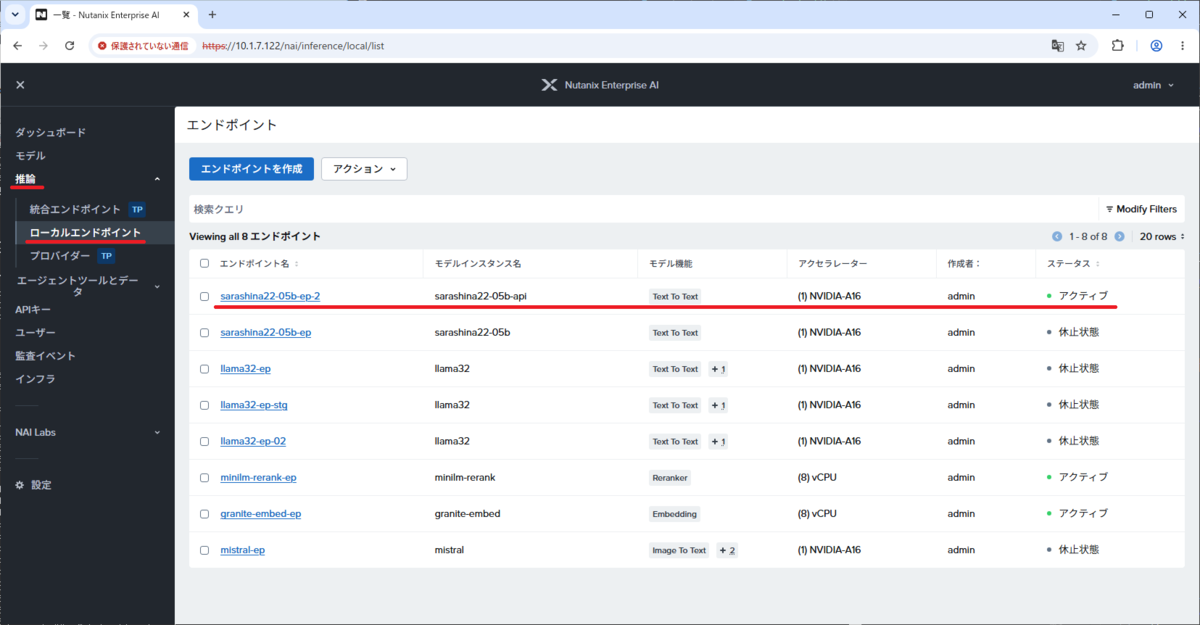
NAI UI の「推論」→「ローカル エンドポイント」を開くと、API で作成したエンドポイントが起動され、少し待つとステータスが「アクティブ」になるはずです。
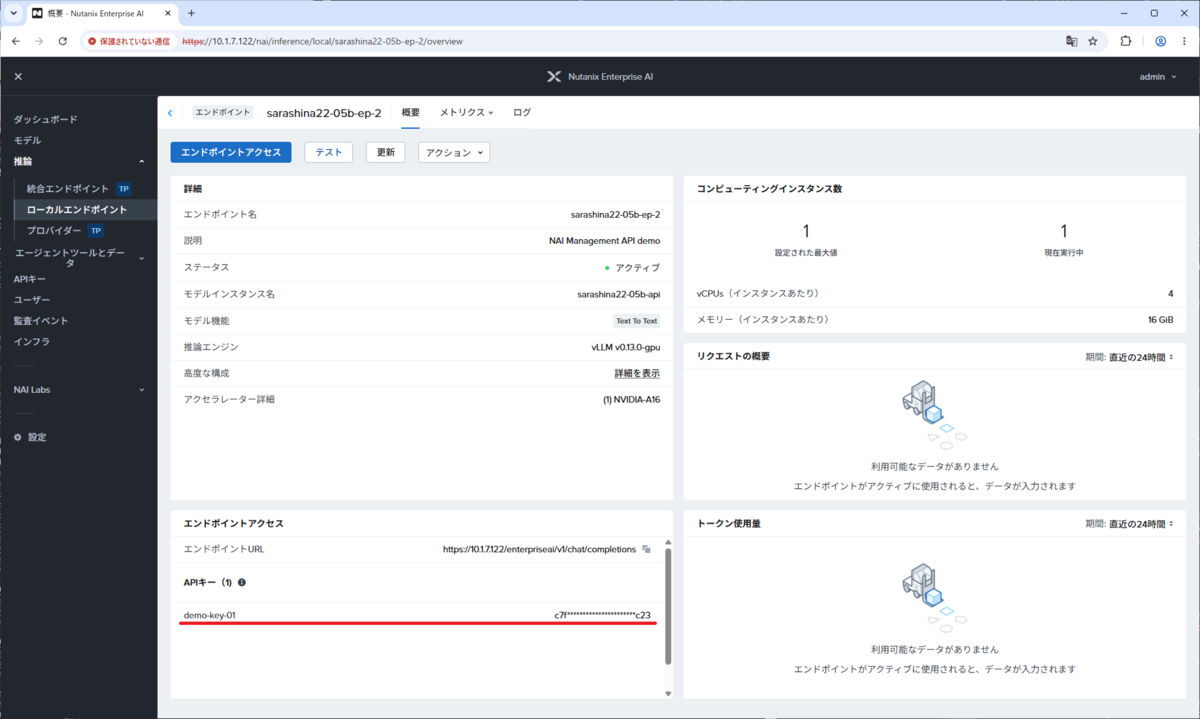
エンドポイントの「概要」タブでは、API キー(demo-key-01)が割り当てられたことが確認できます。ちなみに「説明」には、「description」に指定したテキスト(NAI Management API demo)が設定されています。
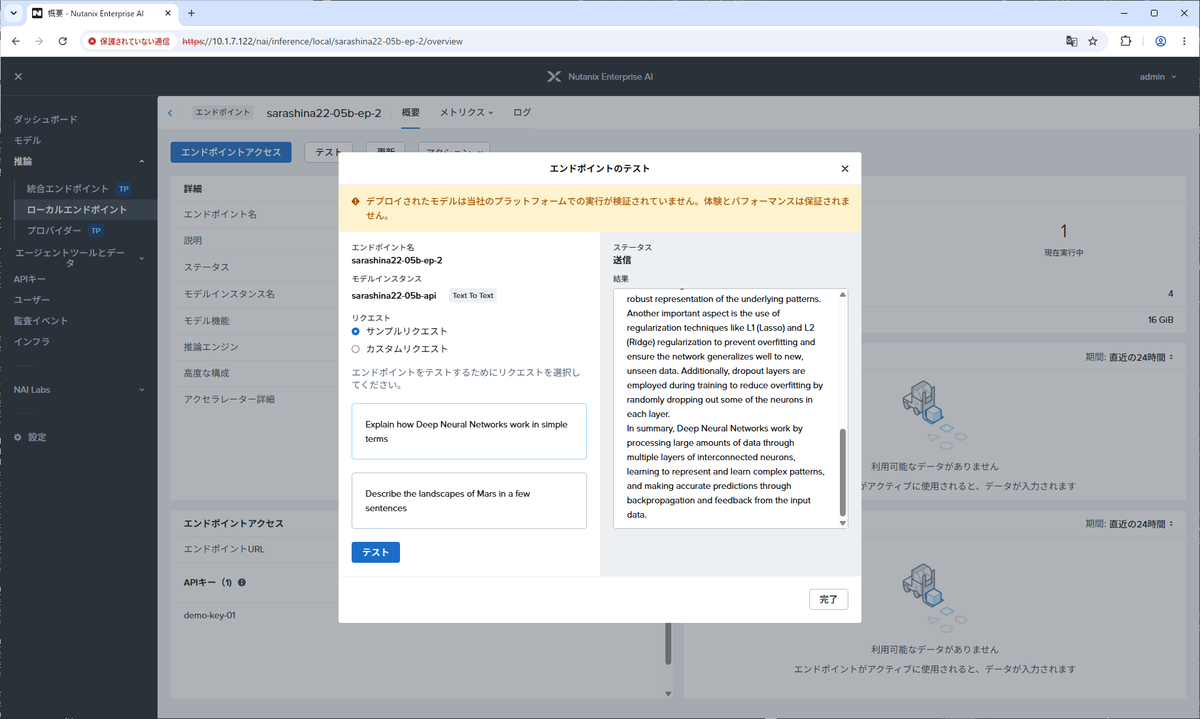
「テスト」を実行すると、推論サービスでのテキスト生成を確認できます。
4-2. API での確認
変数に、エンドポイント名を格納しておきます。
EP_NAME=sarashina22-05b-ep-2
下記のような curl コマンドで、エンドポイントの情報を取得できます。
curl -k -s --request GET \
--url "https://$NAI_UI//api/enterpriseai/v1/endpoints/$EP_NAME" \
--header 'Accept: application/json' \
-u "$NAI_USER:$NAI_PASS" \
--header 'Content-Type: application/json' | jq -r .
実際に実行した様子です。
$ curl -k -s --request GET \
--url "https://$NAI_UI//api/enterpriseai/v1/endpoints/$EP_NAME" \
--header 'Accept: application/json' \
-u "$NAI_USER:$NAI_PASS" \
--header 'Content-Type: application/json' | jq -r .
{
  "data": {
    "id": "sarashina22-05b-ep-2",
    "createdAt": "2026-06-15T16:12:16.443822Z",
    "updatedAt": "2026-06-15T16:12:16.443822Z",
    "name": "sarashina22-05b-ep-2",
    "modelId": "nai-8088d283-6616-4870-8e33-4e",
    "modelName": "sarashina22-05b-api",
    "modelCapabilities": [
      "text-to-text"
    ],
    "cpu": 4,
    "memory": 16,
    "acceleratorCount": 1,
    "acceleratorProduct": "NVIDIA-A16",
    "description": "NAI Management API demo",
    "createdBy": {
      "id": "00000000-0000-0000-0000-000000000000",
      "username": "admin"
    },
    "endPointUrl": [
      "/enterpriseai/v1/chat/completions"
    ],
    "minInstances": 1,
    "maxInstances": 1,
    "actualInstances": 1,
    "engine": "vllm",
    "validated": false,
    "adminEnabled": true,
    "platform": "nvidia-gpu-passthrough",
    "purpose": "real-time",
    "expandValues": {
      "actualInstances": "1"
    },
    "advancedConfig": {
      "maxNumTokens": 8192
    },
    "experimental": false,
    "runtimeImage": "docker.io/nutanix/nai-vllm:v0.13.0-gpu",
    "engineSource": "nai",
    "kvAwareRouting": false
  },
  "msg": "Endpoint fetched successfully"
}
おまけ:エンドポイントの削除
作成したエンドポイントを、API で削除しておきます。
変数に、エンドポイント名を格納しておきます。
EP_NAME=sarashina22-05b-ep-2
下記のような curl コマンドを実行すると、エンドポイントが削除されます。
curl -k -s --request DELETE \
--url "https://$NAI_UI//api/enterpriseai/v1/endpoints/$EP_NAME" \
--header 'Accept: application/json' \
-u "$NAI_USER:$NAI_PASS" \
--header 'Content-Type: application/json' | jq -r .
以上。

